Role-based instructions for Partners, UNHCR Programme and UNHCR Project Control personnel.
Partner and UNHCR usersRevised: 10 February 2026
1
Intro
This guide explains the complete prepayment request process after the Financial Plan Negotiation has been completed.
2
Contents
3
The prepayment lifecycle — high level
The Partner creates the request. Programme reviews it, Project Control performs the final UNHCR review and the delegated authority decides in Cloud ERP.
Draft
Partner prepares
Proposed
Partner submits
Verified / Revised
Programme decides
Agreed / Revised
Project Control decides
Approved / Rejected
Cloud ERP decision
Revision route
If Programme or Project Control selects Revised, adds a clear comment, validates and submits, the request returns to the Partner. The Partner reads the comment, corrects the amount or explanation, selects Proposed and resubmits.
Forward route
Programme selects Verified to route the request to Project Control. Project Control selects Agreed after the required validation checks pass, then submits it onward for approval.
4
Roles involved and systems used
Actor
System role
System
Main responsibility
Partner user
HCR PFM PARTNERS
PROMS App
Creates the first request, enters the amount and comments and corrects any request returned as Revised.
6aWhy understanding the standard features is important
All roles use the same Prepayment page, but available actions depend on the selected role and current status. Check the process bar, amount, comments, validation indicator and active buttons before deciding what to do.
6bFilter and find the record when it is time for your role to act
Filter by Budget Year, Operation, Partner and Contract Number. The Partner starts from an Approved Financial Plan after the FPN is complete and no other prepayment request is pending. Programme acts on Proposed requests and Project Control acts on Verified requests.
Confirm the Approved FPN and contract before starting the first prepayment request.
6cAnatomy of a Prepayment
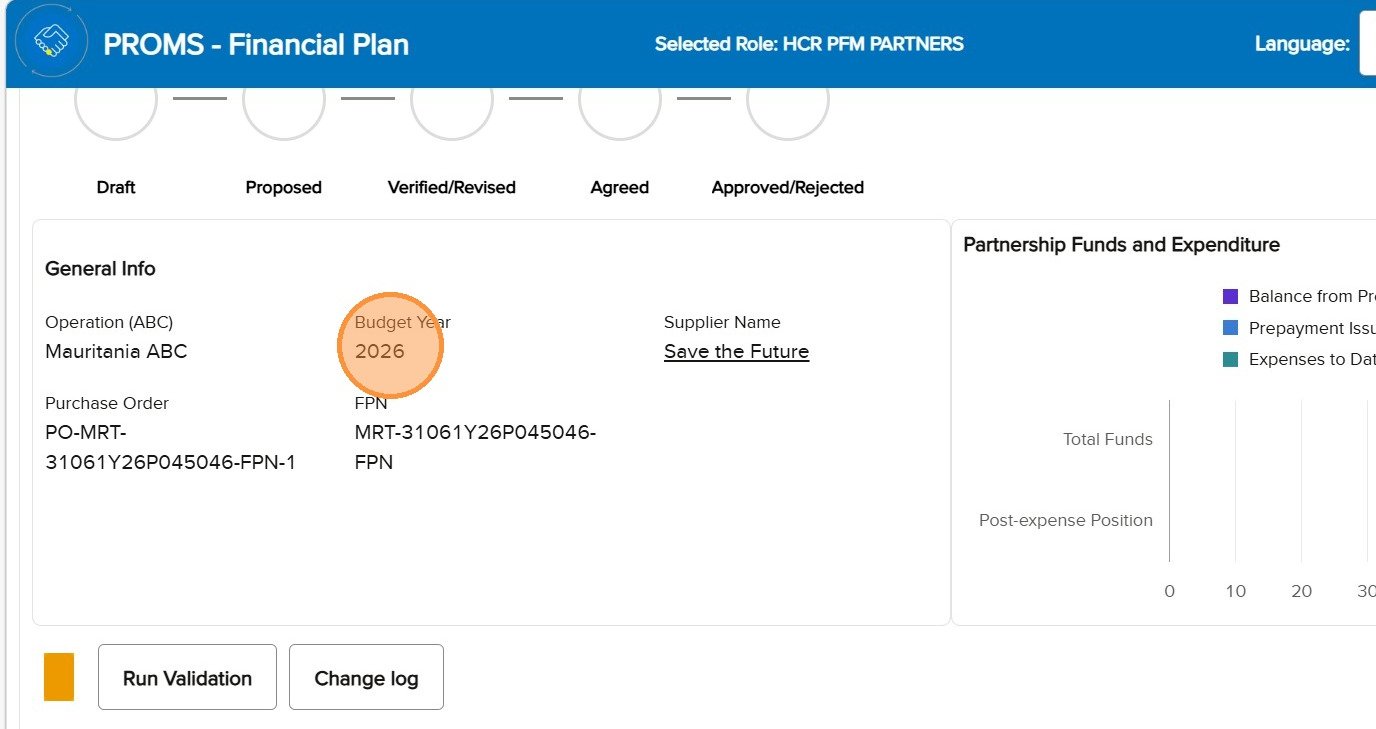
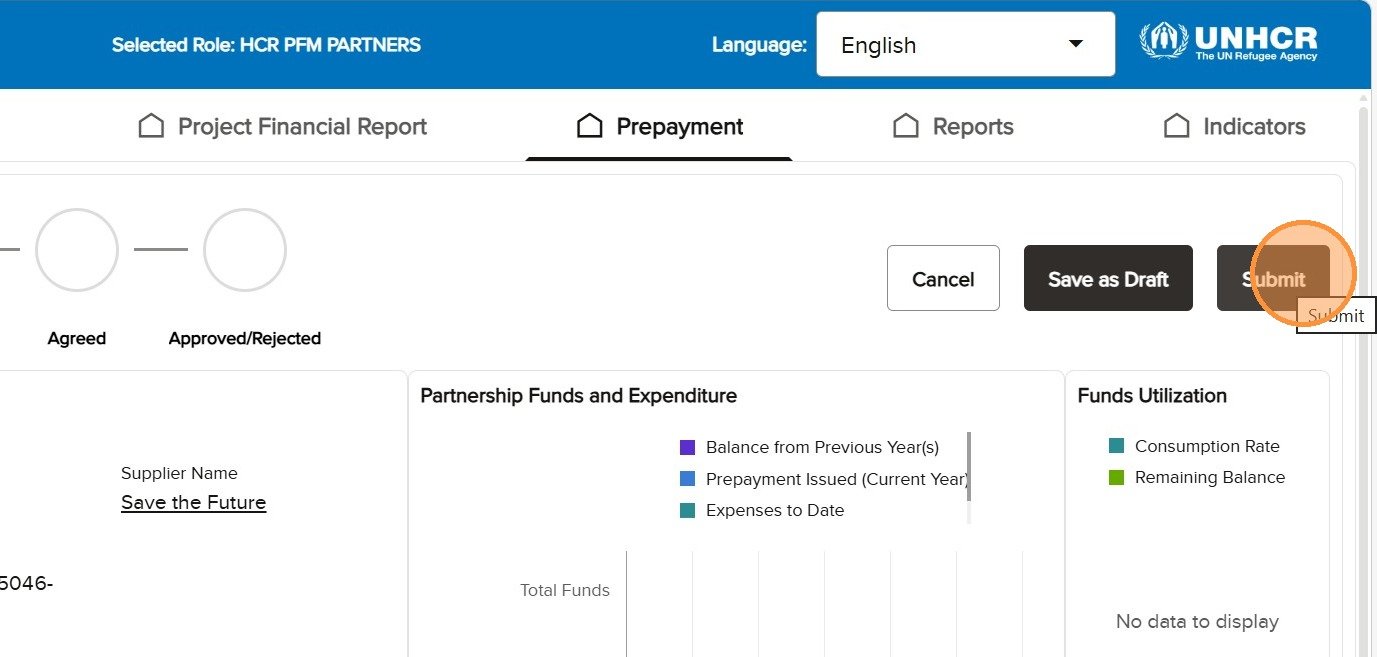
The upper page area combines the prepayment identifier, process bar, action buttons and General Info. Confirm these details before editing.
The common Prepayment page header and General Info area.
Feature
Purpose
Prepayment number
Identifies the individual request, including the PP-prefixed invoice reference in search results.
Process Bar
Shows Draft, Proposed, Verified/Revised, Agreed and Approved/Rejected.
General Info
Shows the operation, budget year, supplier, Purchase Order and FPN reference.
6dGeneral comments
The Comments field carries the explanation for the current action. The Partner explains what the request covers or what was corrected. Programme and Project Control record why they verified, agreed or returned the request. A revision comment must tell the Partner what needs to change.
Use Comments to explain the request, decision or correction before validation and submission.
6eThe two monitoring charts
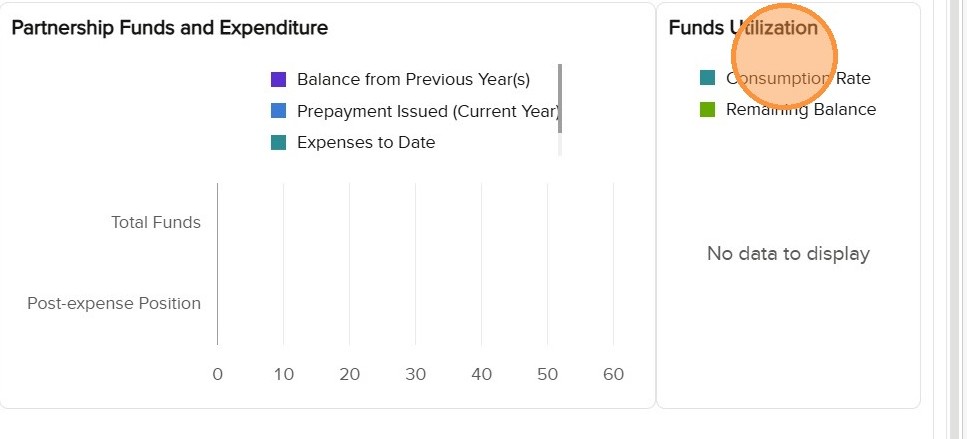
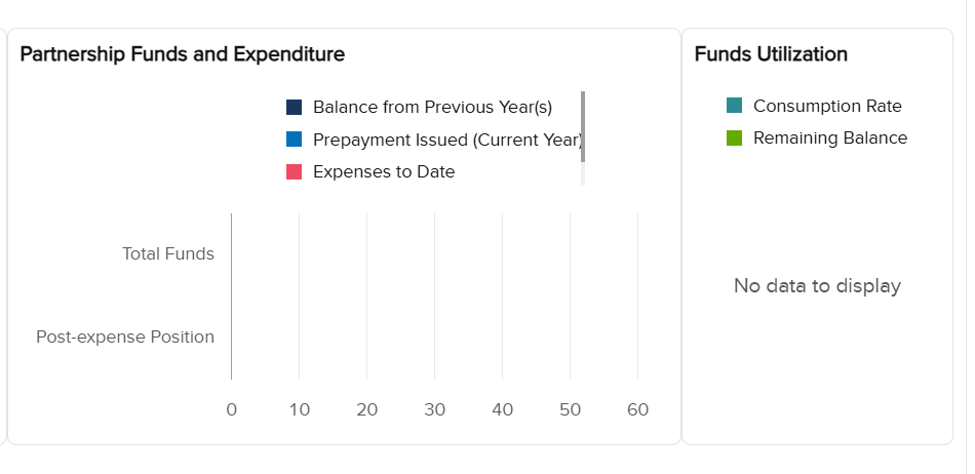
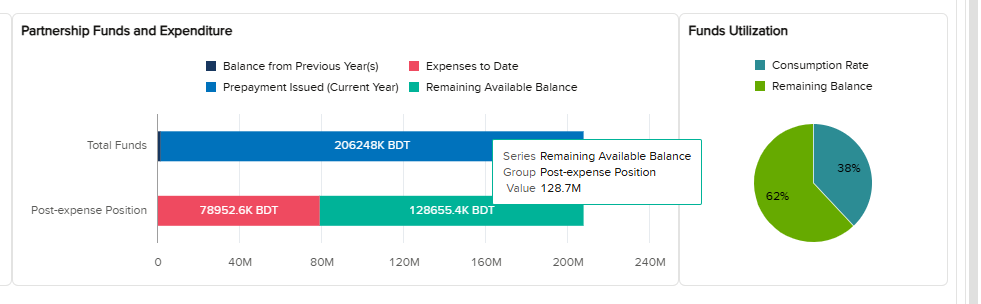
Partnership Funds and Expenditure shows previous-year balances, current-year prepayments and reported expenses. Funds Utilization shows use of available funds and the remaining balance. On the first prepayment the charts can be empty; during the year they provide context for subsequent requests.
At the beginning of the year, the monitoring area may contain no prior prepayment or expenditure activity.
Partnership Funds and Expenditure provides financial context during the year.
Funds Utilization shows the balance and rate of use during implementation.
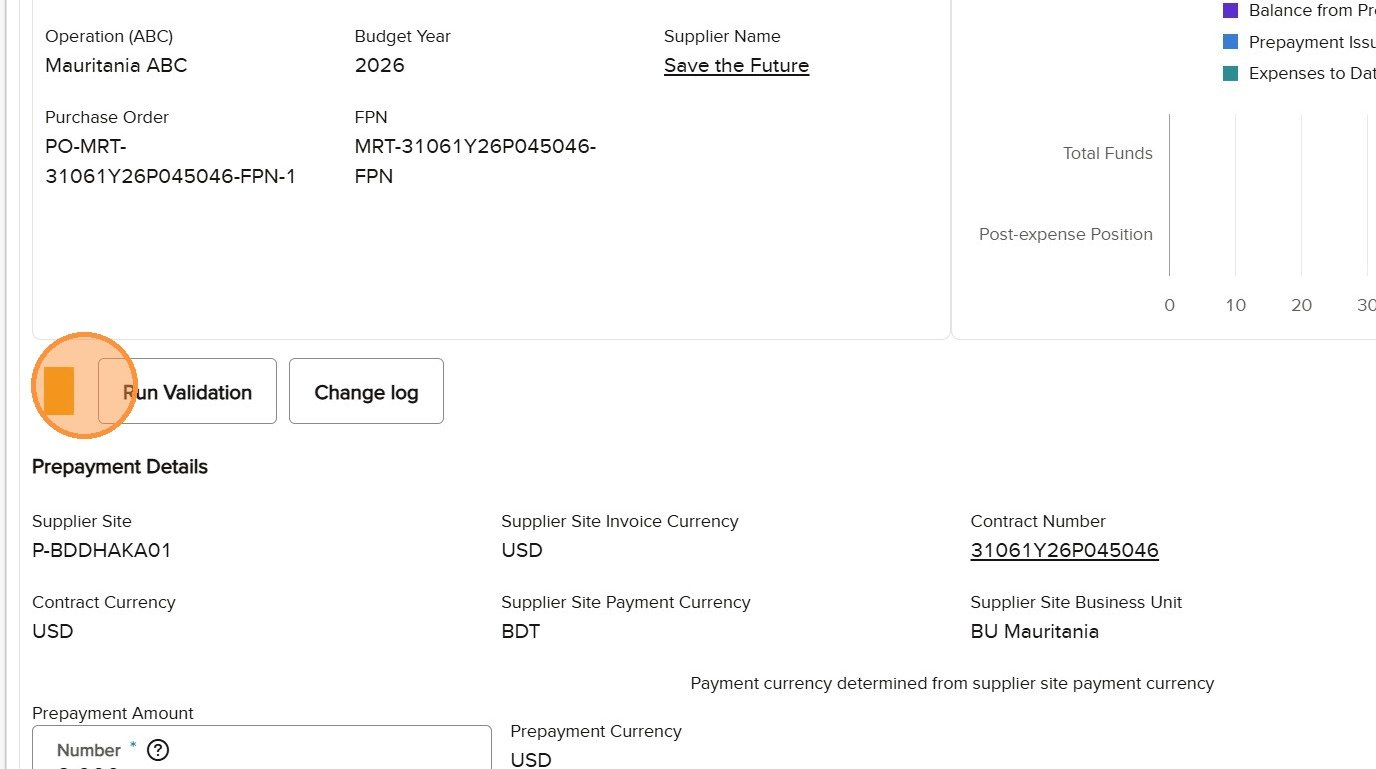
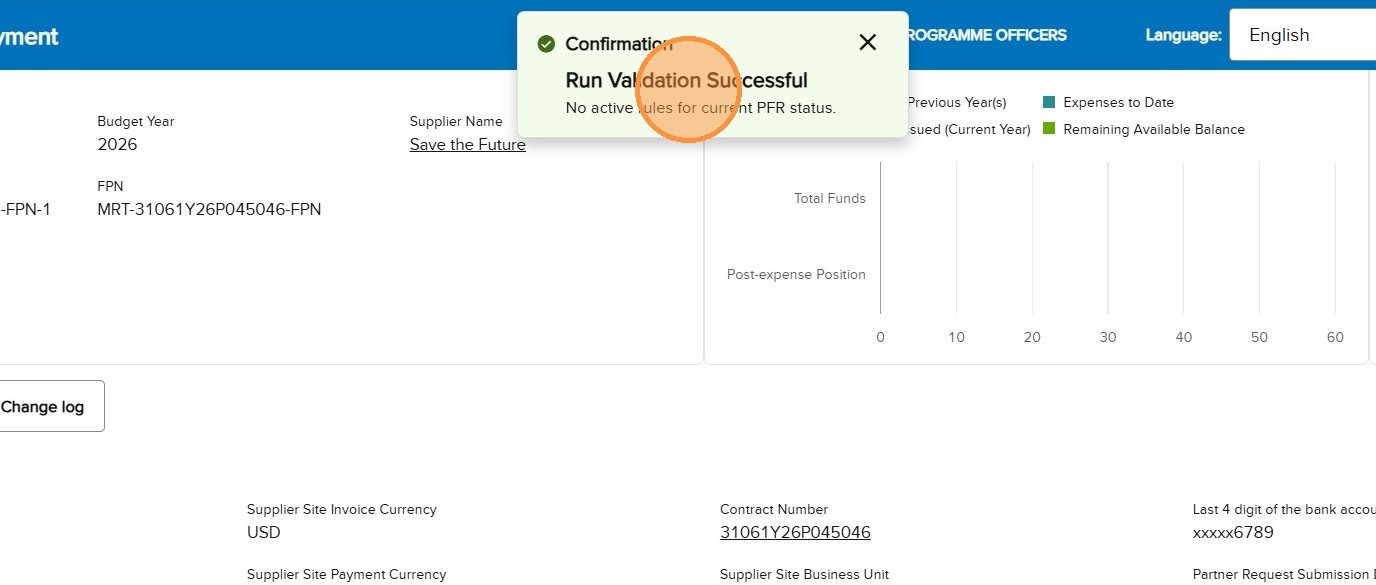
6fRun Validation and indicator colours
Colour
Meaning
Required action
Orange
The request is new or has changed since validation.
Select Run Validation.
Red
One or more checks failed.
Read the message, correct the issue and run validation again.
Green
The current checks passed.
Confirm the intended status and select Submit.
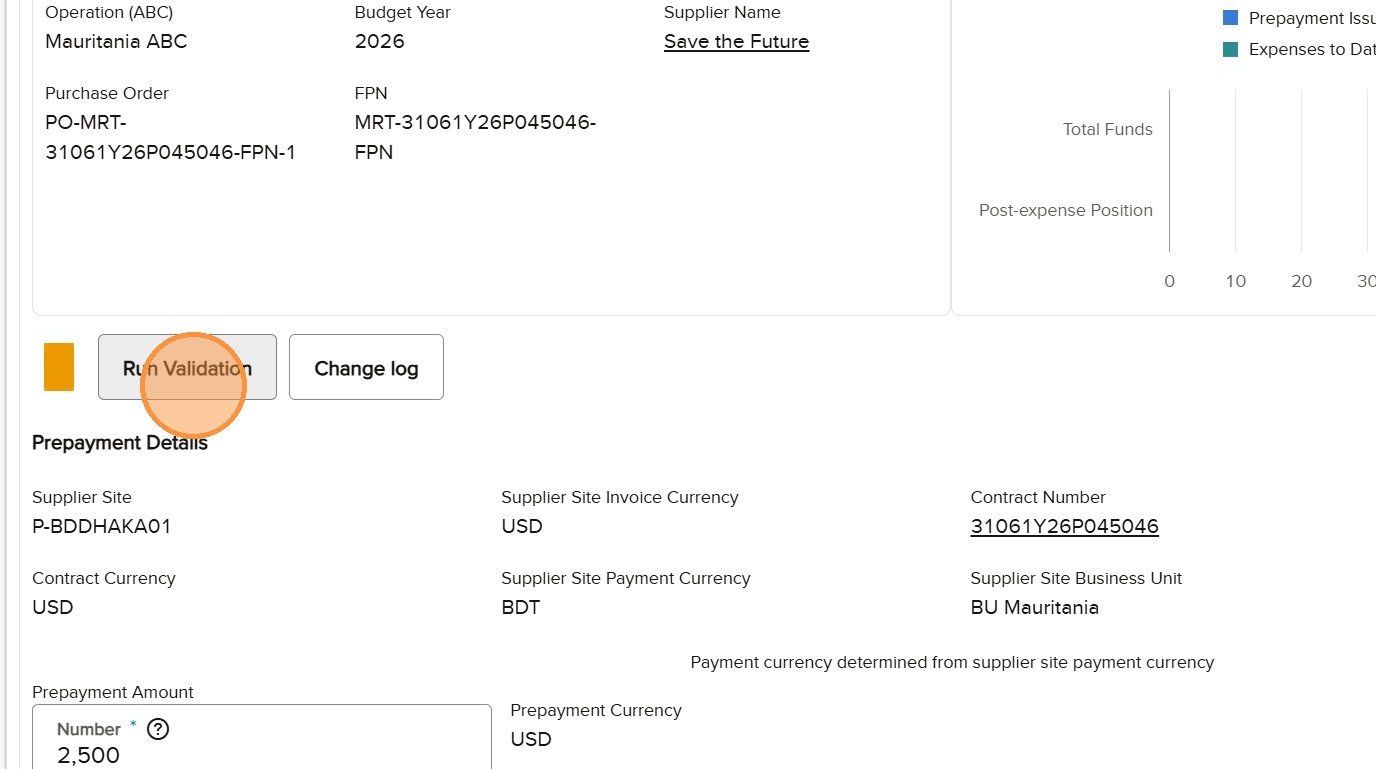
Orange means the current changes have not yet passed validation.
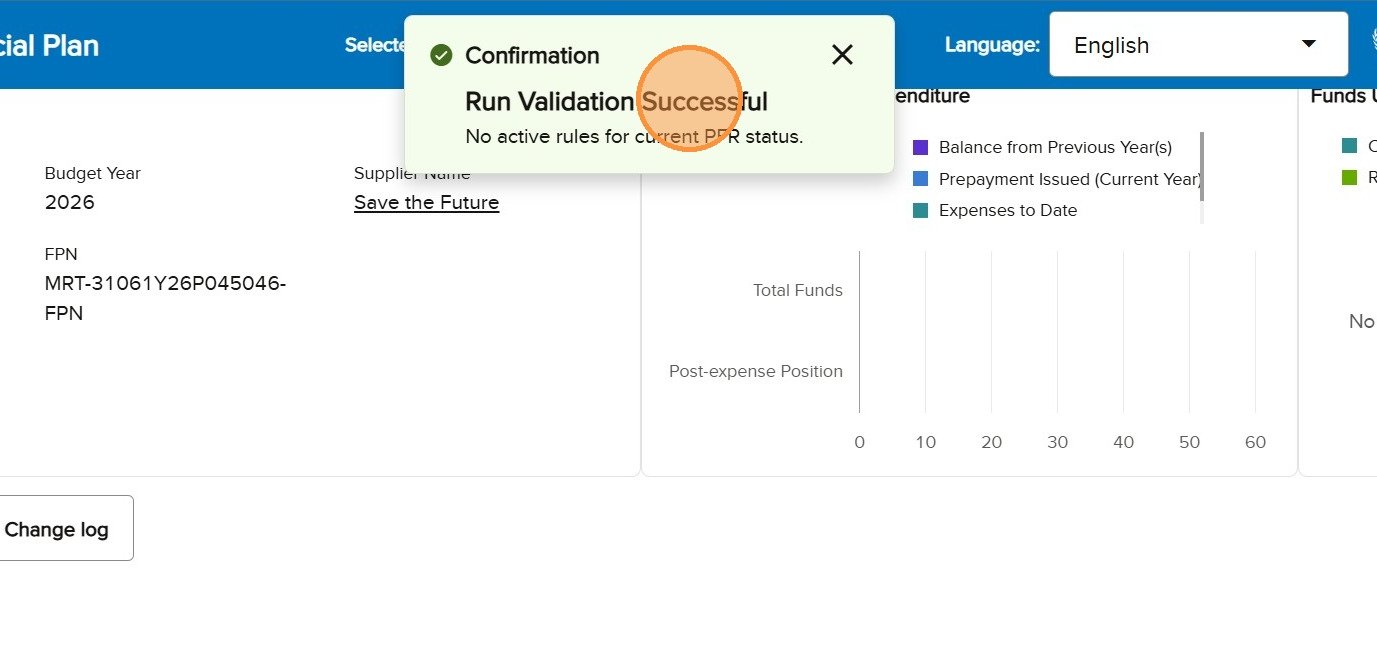
A successful validation turns the indicator green and enables submission.
6gCancel, Save as Draft and Submit
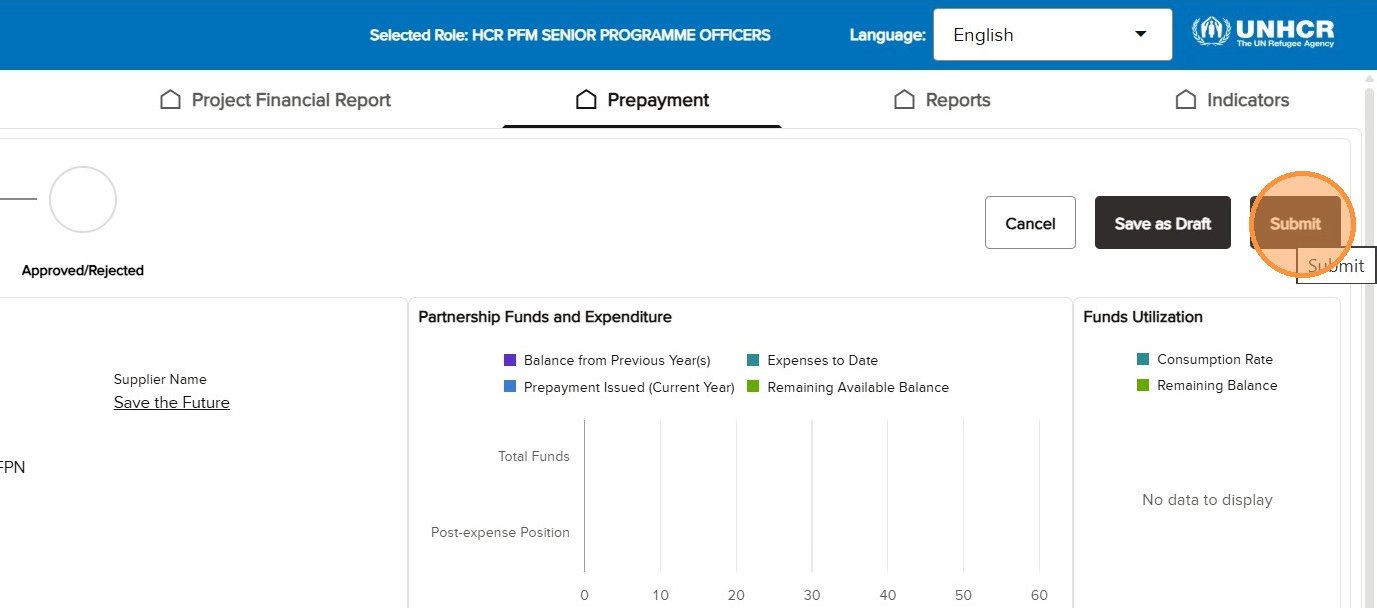
Cancel leaves the current editing action without routing the request. Save as Draft retains work without handing it to the next role. Submit routes the request according to the selected status and becomes active only after validation succeeds.
Before successful validation, Submit remains inactive while Cancel and Save as Draft are available.
After the indicator turns green, Submit becomes available and hands the request to the next role.
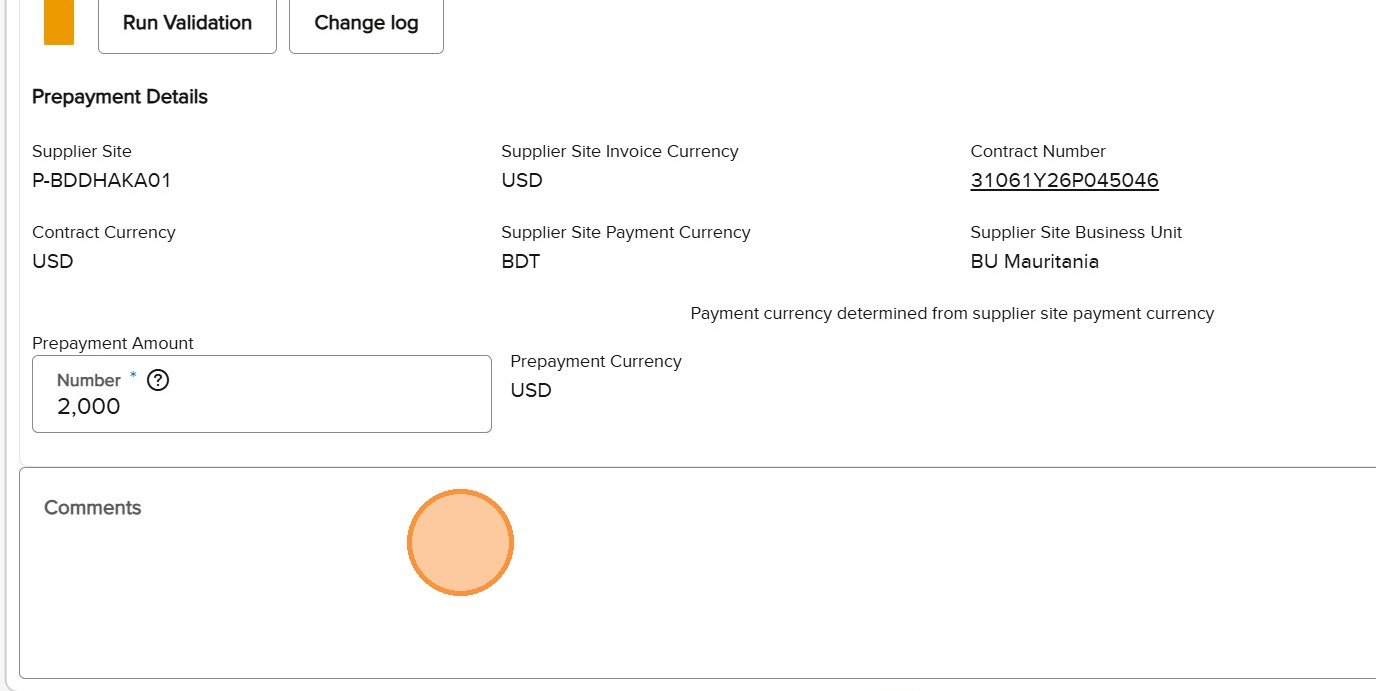
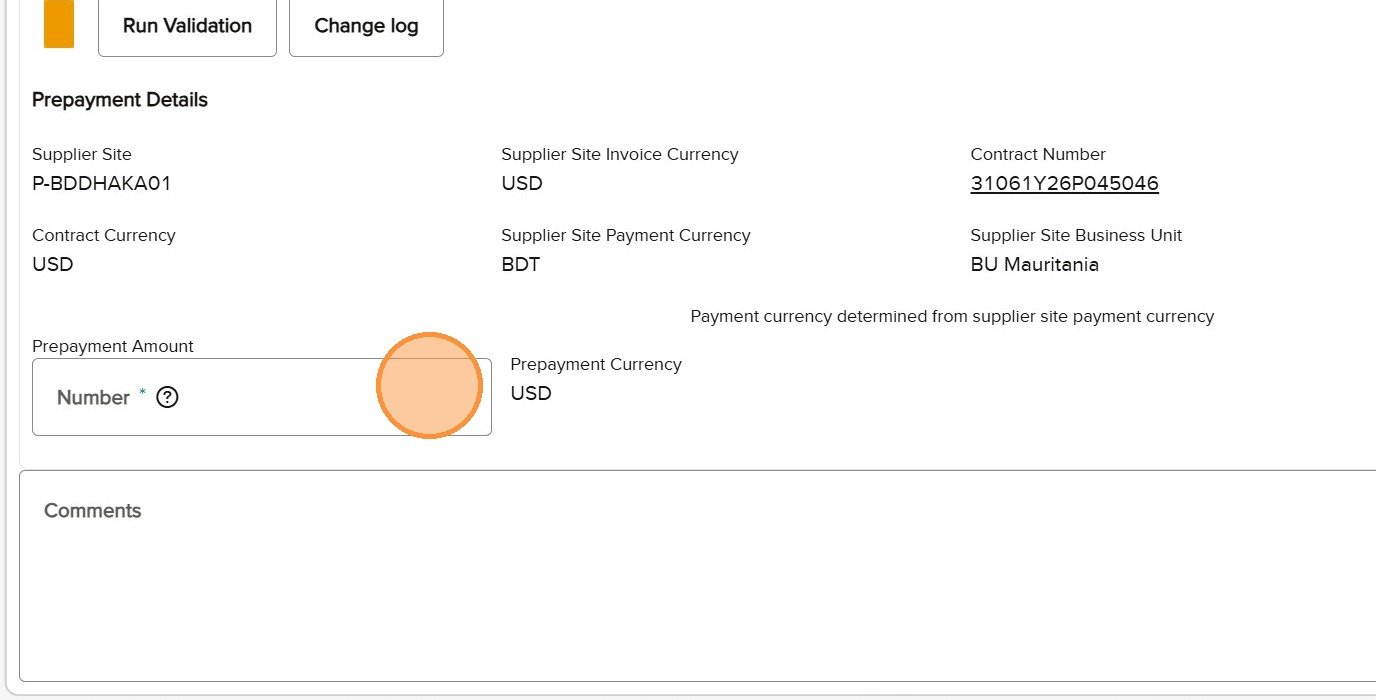
6hPrepayment Amount
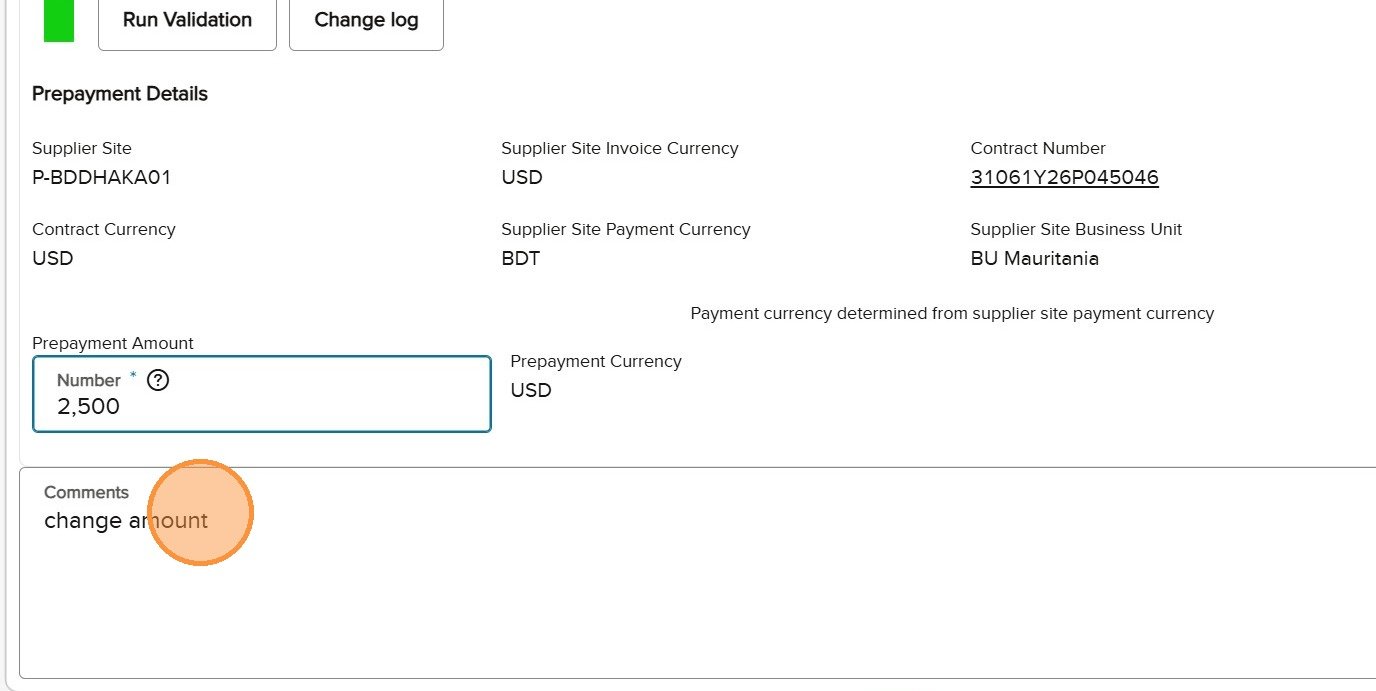
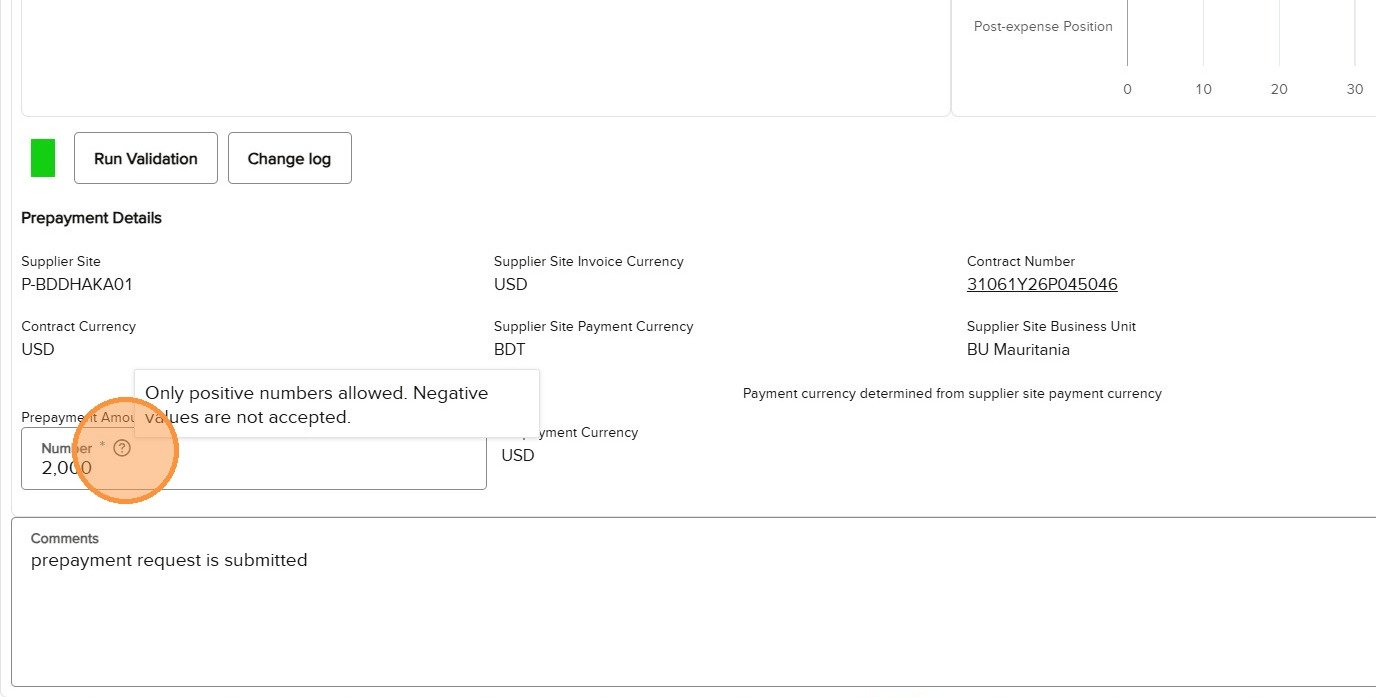
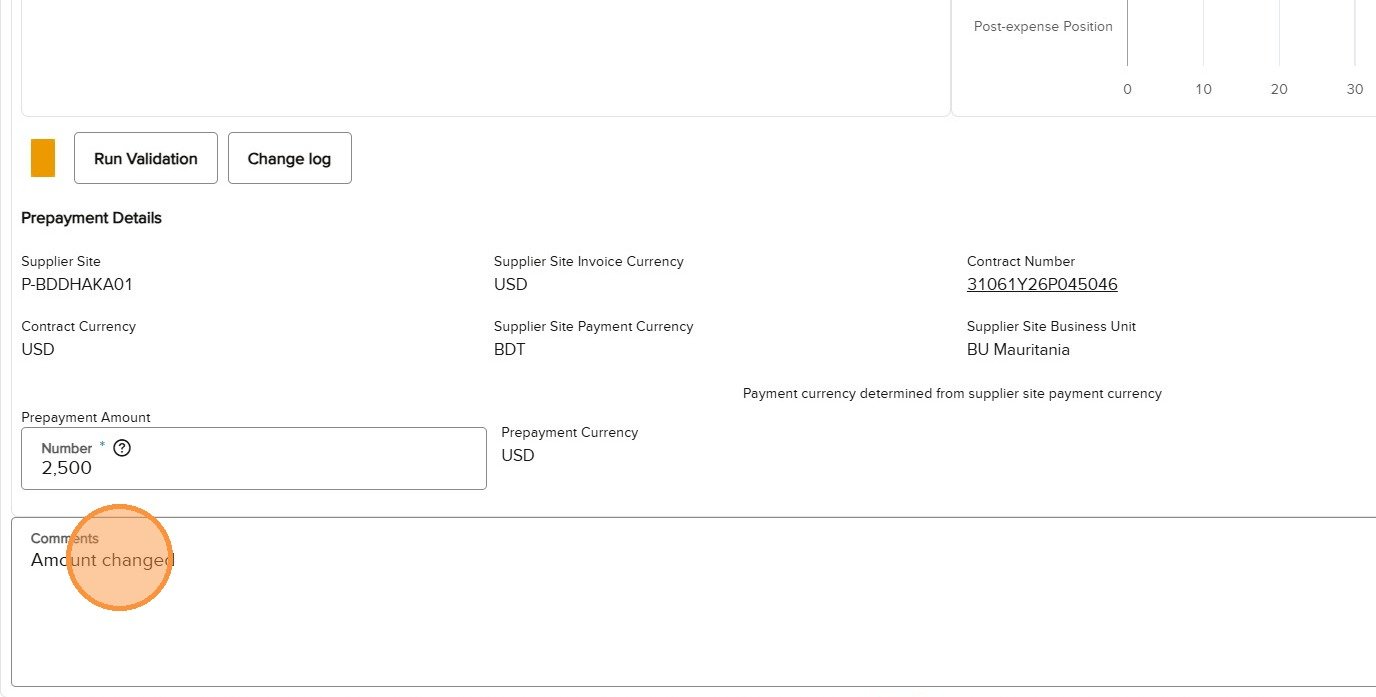
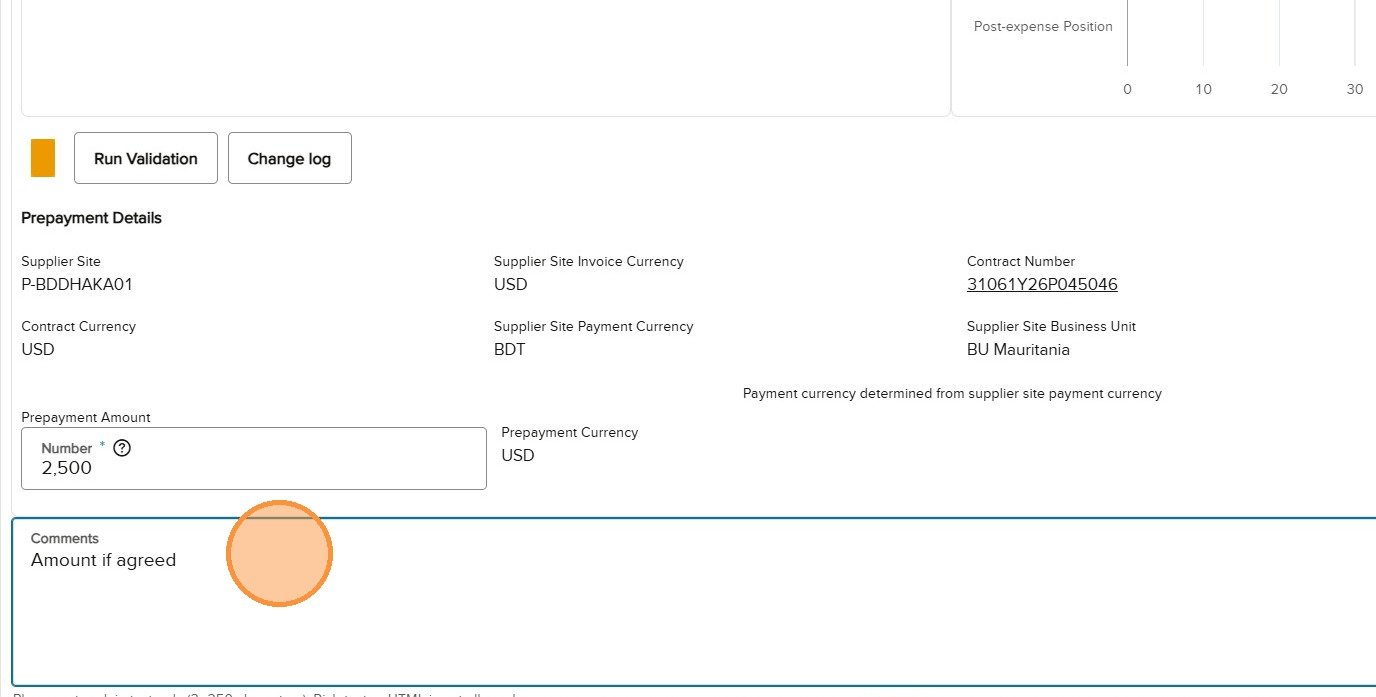
The Partner enters the initial requested amount. Programme and Project Control can maintain or overwrite the amount during their review. Enter a positive amount; do not use a negative number. Any change should be explained in Comments.
The Prepayment Amount is entered in the Prepayment Details section.
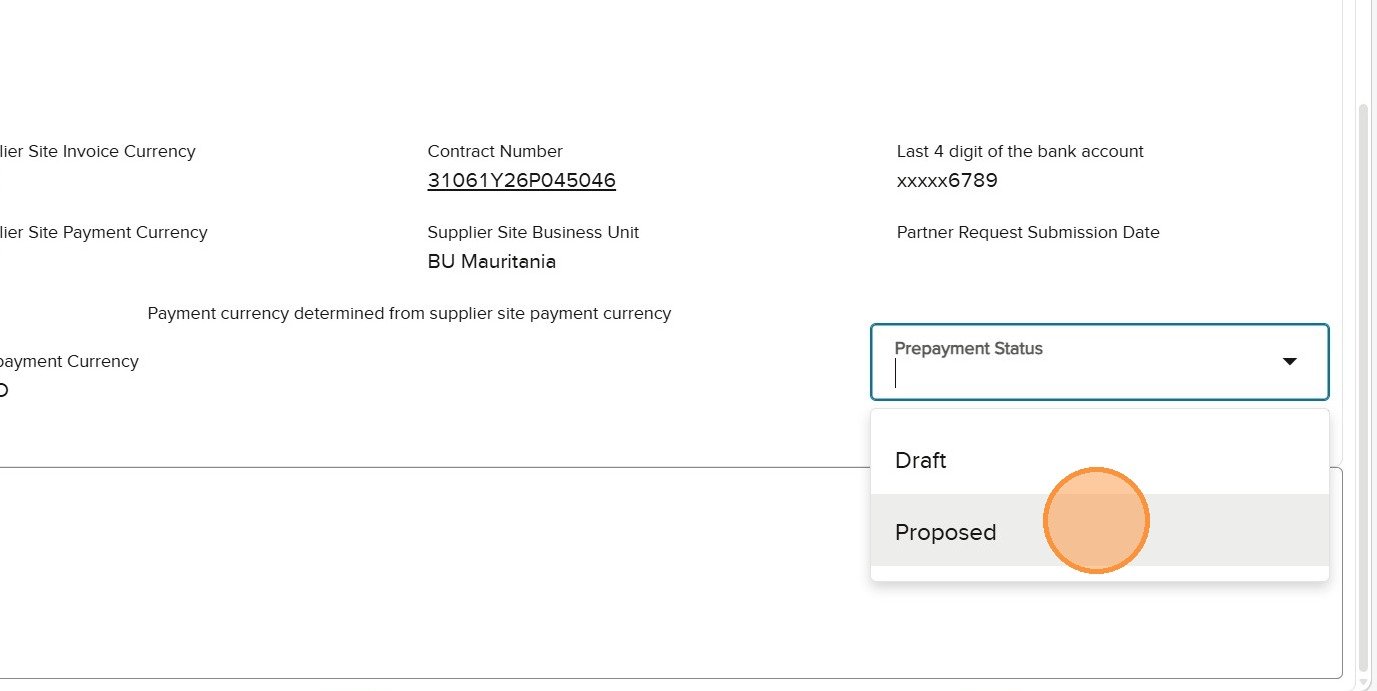
6iPrepayment Status by role
Role
Status received
Available decision
Route after submission
Partner
Draft or Revised
Draft or Proposed
Proposed goes to Programme.
Programme Officer
Proposed
Verified or Revised
Verified goes to Project Control; Revised returns to Partner.
Project Control Officer
Verified
Agreed or Revised
Agreed goes onward for approval; Revised returns to Partner.
Delegated authority
Downstream transaction
Approved or Rejected
Decision is made in Cloud ERP.
The status choices change according to the selected role and current workflow stage.Back to contents
Section 7 · Role: HCR PFM PARTNERS
Partner steps and revision loop
Draft → ProposedRevised → ProposedPROMS App
7.1
Log in and confirm the Partner role
Instruction
Confirm HCR PFM PARTNERS is selected and check the operation, budget year and Partner context.
Expected result
The Financial Plan and Prepayment records for the correct context are available.
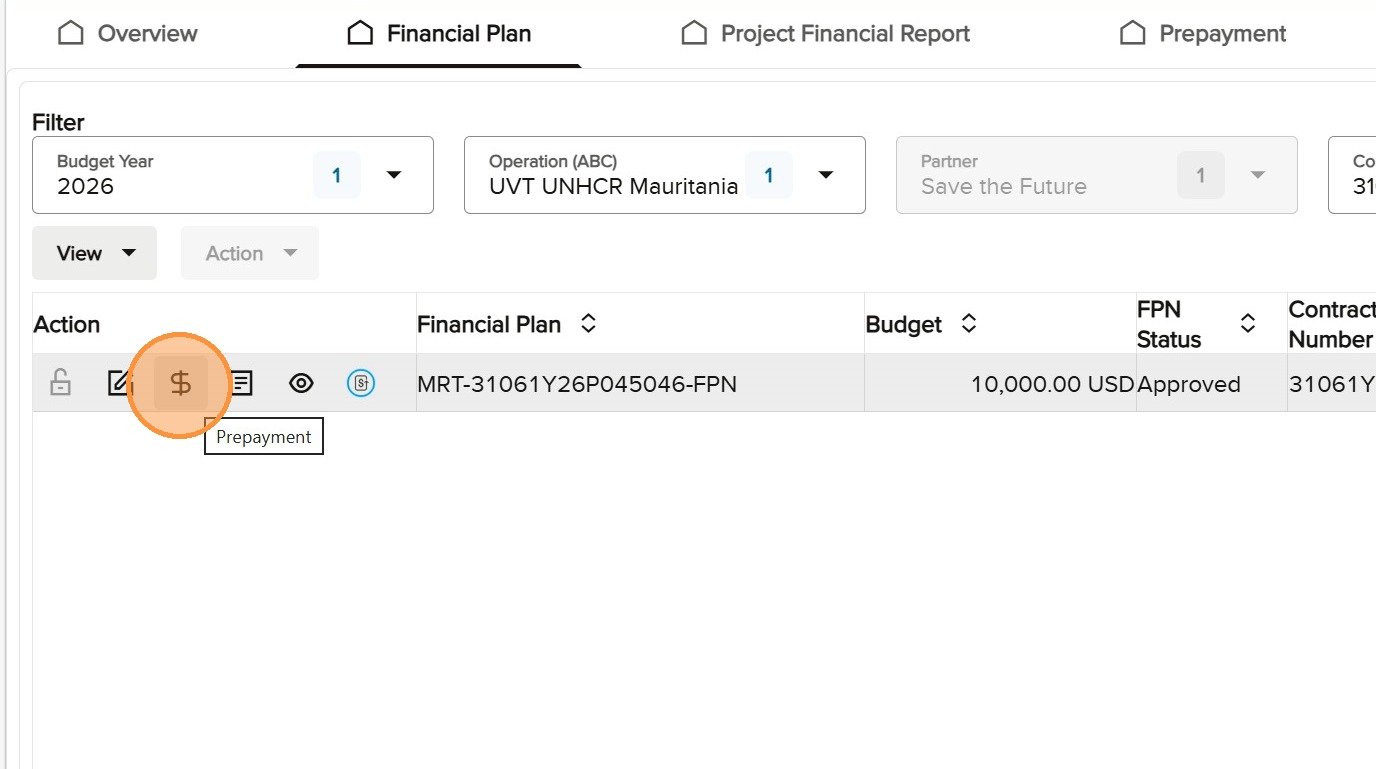
Find the Approved FPN and open the Prepayment action
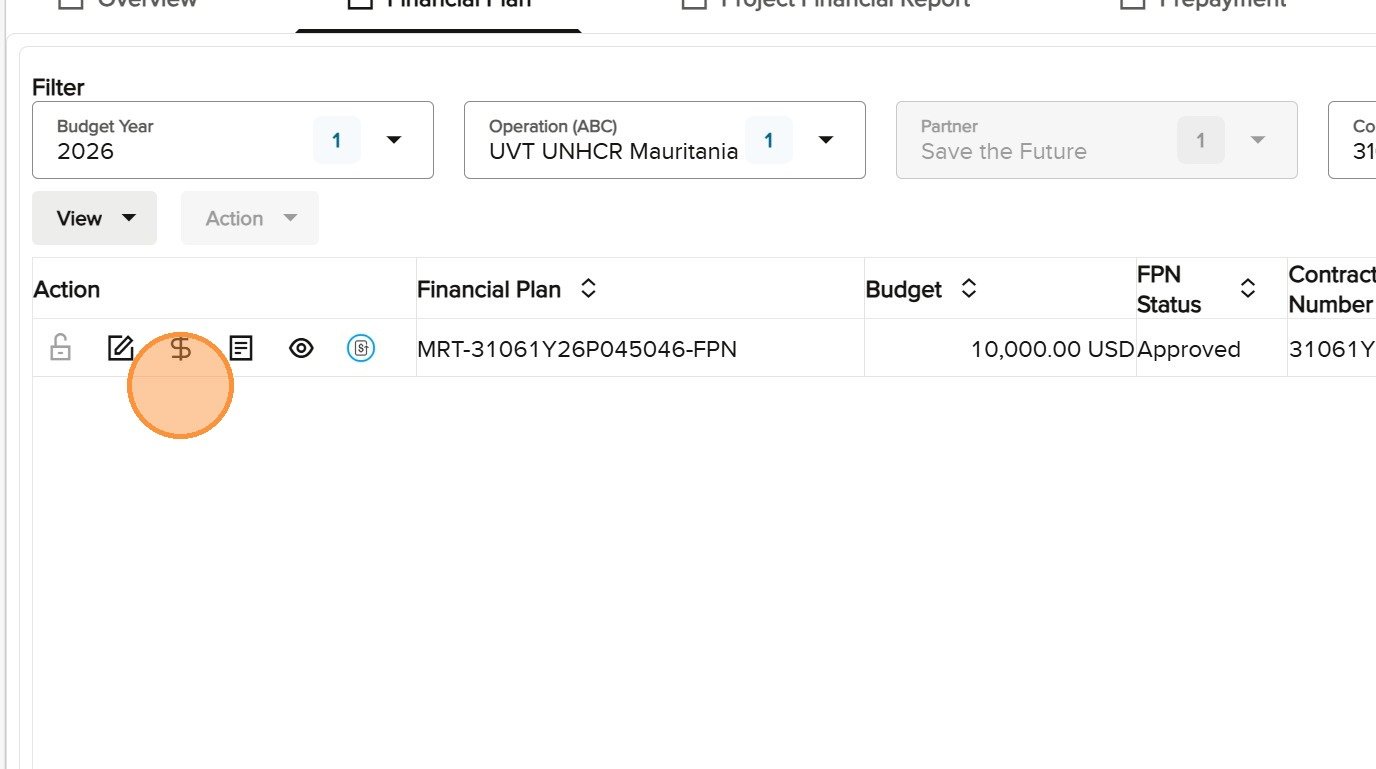
On Financial Plan, filter for the correct record. Confirm FPN Status is Approved and the contract matches. Select the Prepayment action icon; the Partner is the only role that can create the first request.
Locate the Approved FPN and confirm the contract before starting.
Select the Prepayment action, not the Project Financial Report action.
Enter the initial amount, add a comment and select Proposed
Confirm General Info and Prepayment Details. Enter the agreed positive amount, explain what the request covers in Comments and select Proposed. Use Save as Draft if the request is not ready to leave your control.
Enter the initial positive Prepayment Amount.
Explain the purpose and basis of the request in Comments.
Understand and complete a request returned as Revised
Why a revision is sent: Programme or Project Control may return the request when the amount is not accepted, the explanation is insufficient or the request needs correction in light of the Partner risk rating, outstanding balances, the agreed Project Workplan, Essential Controls or available funds.
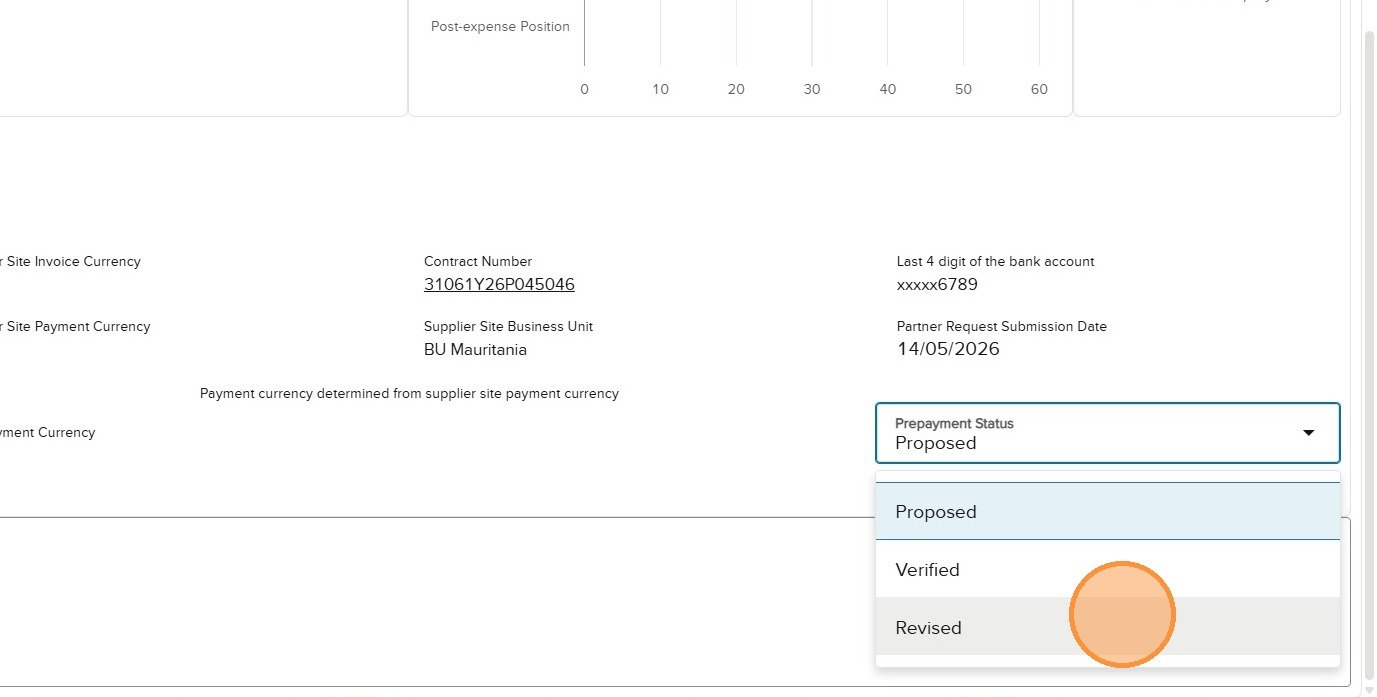
How UNHCR sends it: The reviewing officer selects Revised, writes a mandatory comment stating what must change, runs validation and selects Submit. The workflow routes the request back to HCR PFM PARTNERS and activates Edit for the Partner.
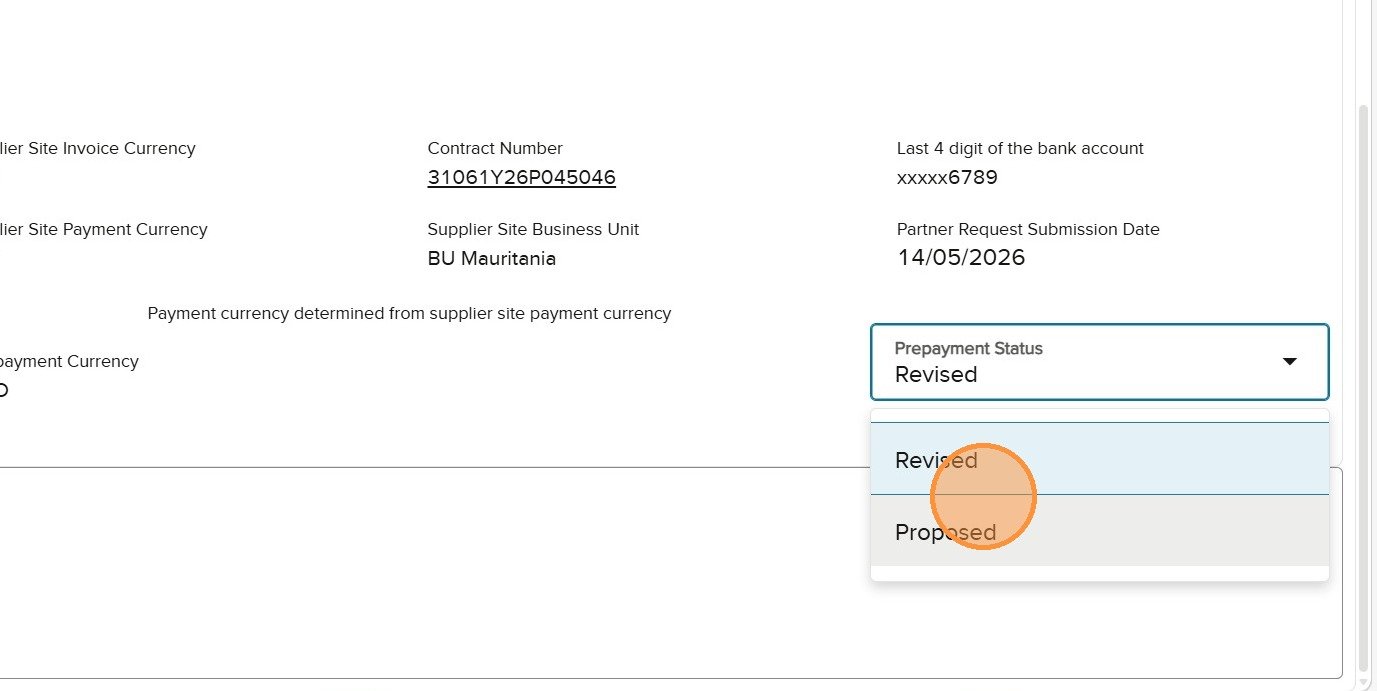
What the Partner does: Open the Revised request, read the UNHCR comment before editing, overwrite the amount where required, add a new comment describing the correction, change the status from Revised to Proposed, run validation and resubmit. The revision loop can repeat until Programme verifies and Project Control agrees the request.
A Revised request returns to the Partner and becomes editable again.
Follow the UNHCR comment, correct the amount and record what changed.
Validate and submit the initial or corrected request
Run Validation after all changes. Wait for the successful result and confirm the indicator is green. Submit routes the request to Programme and removes Partner edit access until a reviewer returns it.
Run validation again whenever the amount, comment or status changes.
Submit the corrected Proposed request back to Programme.
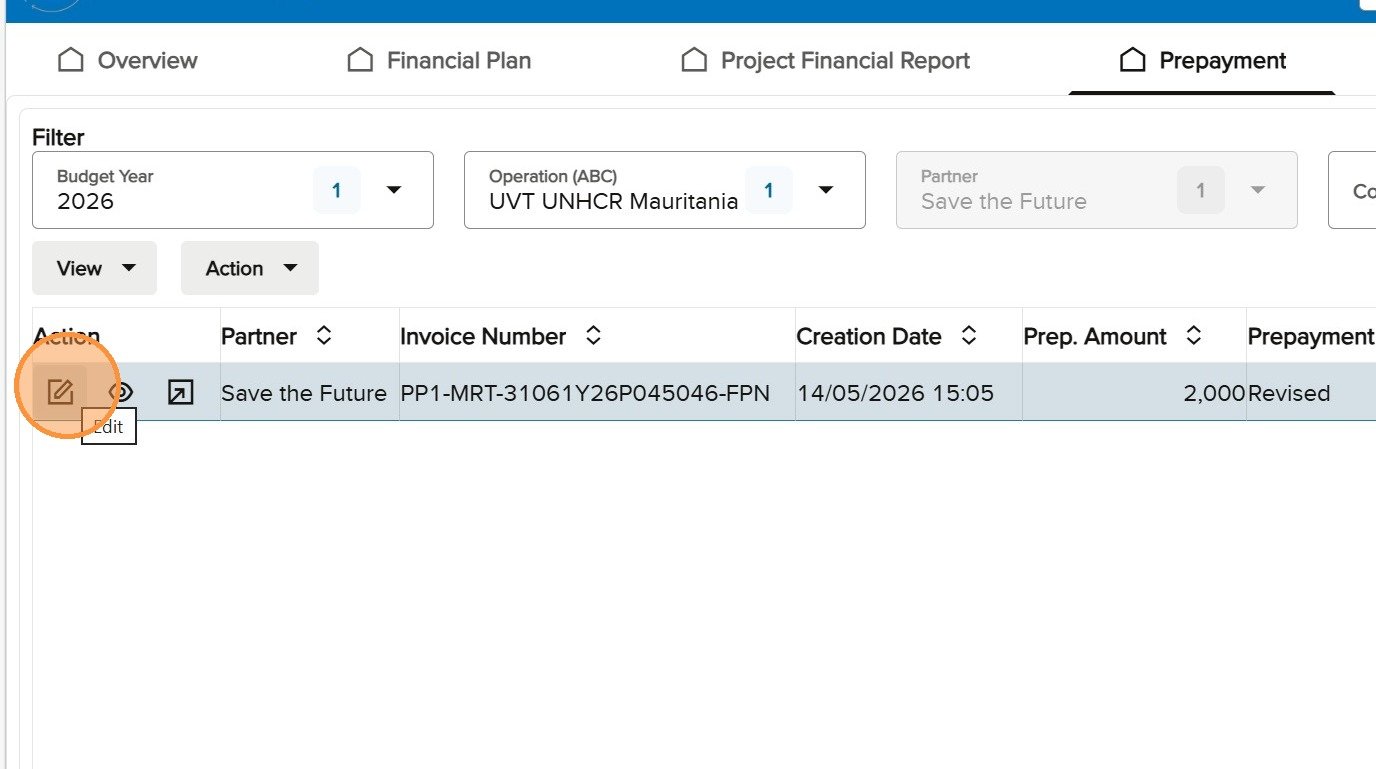
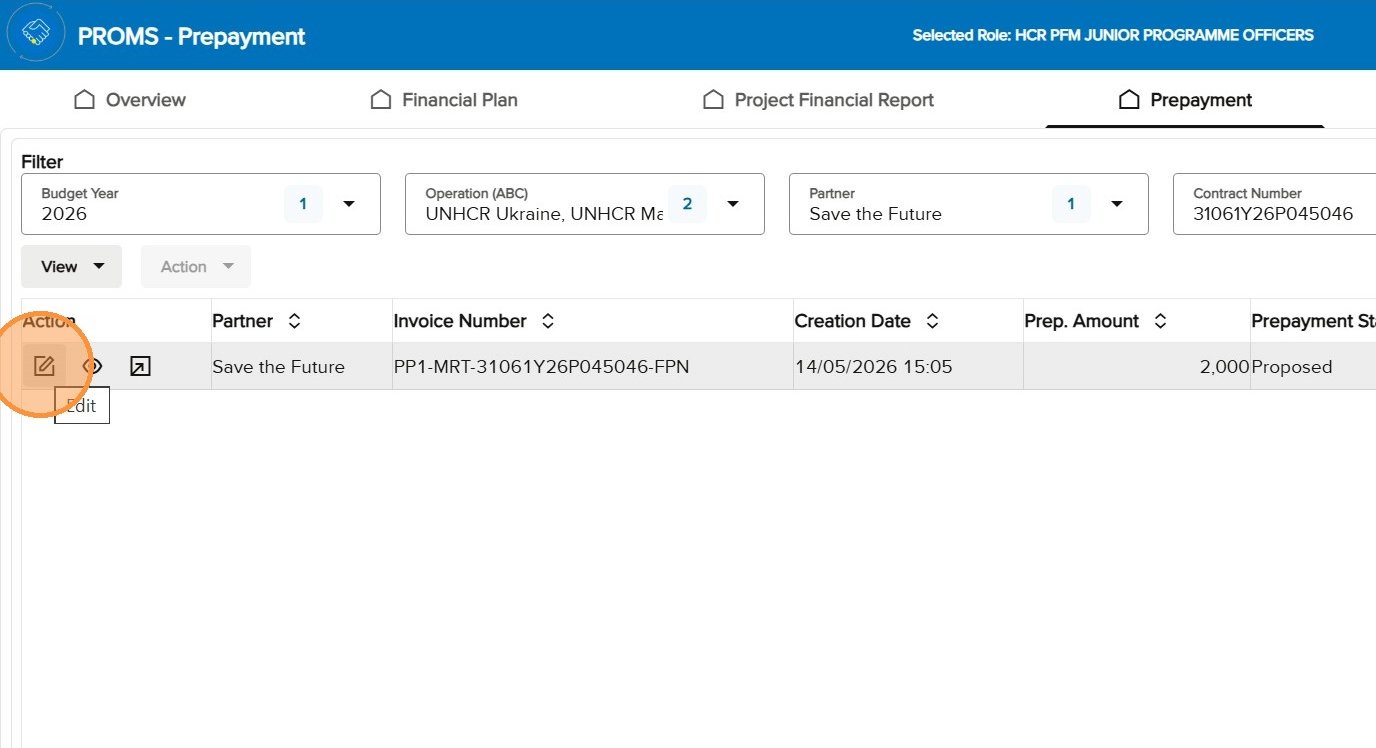
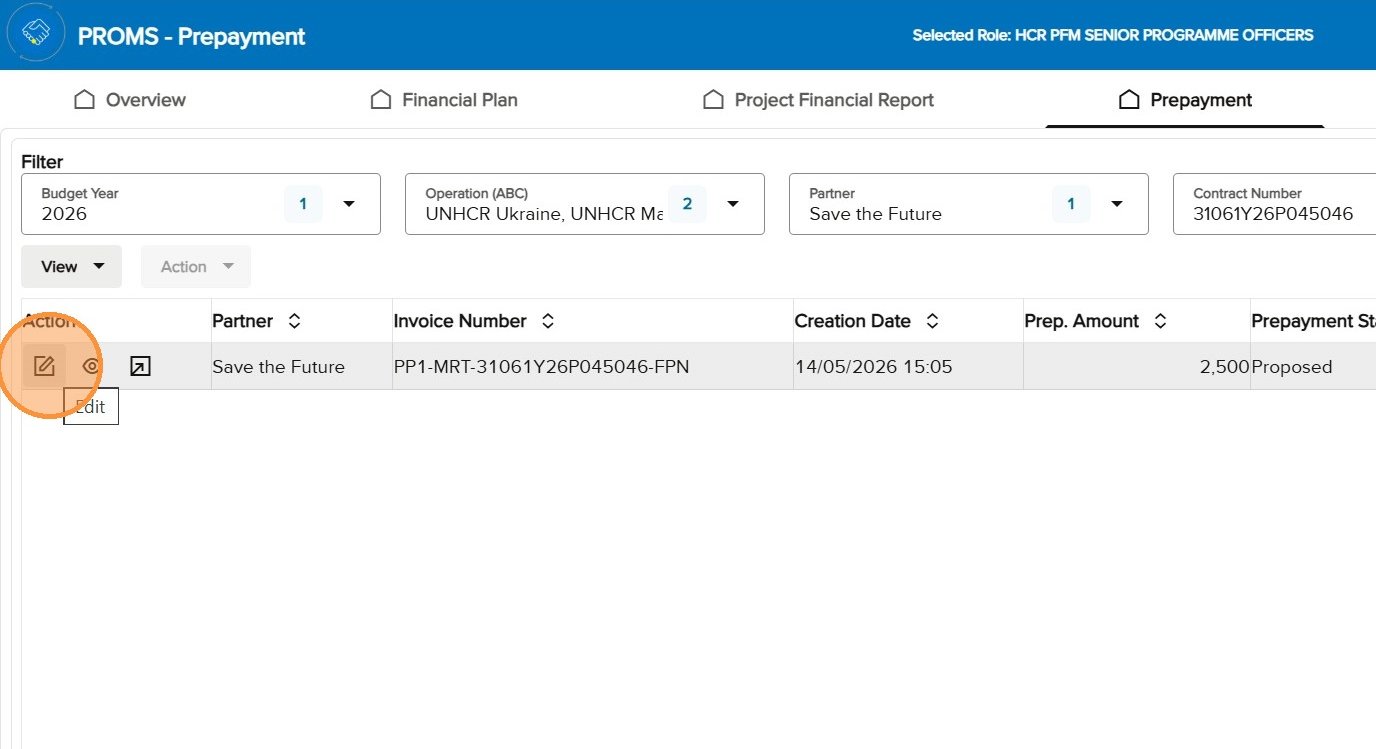
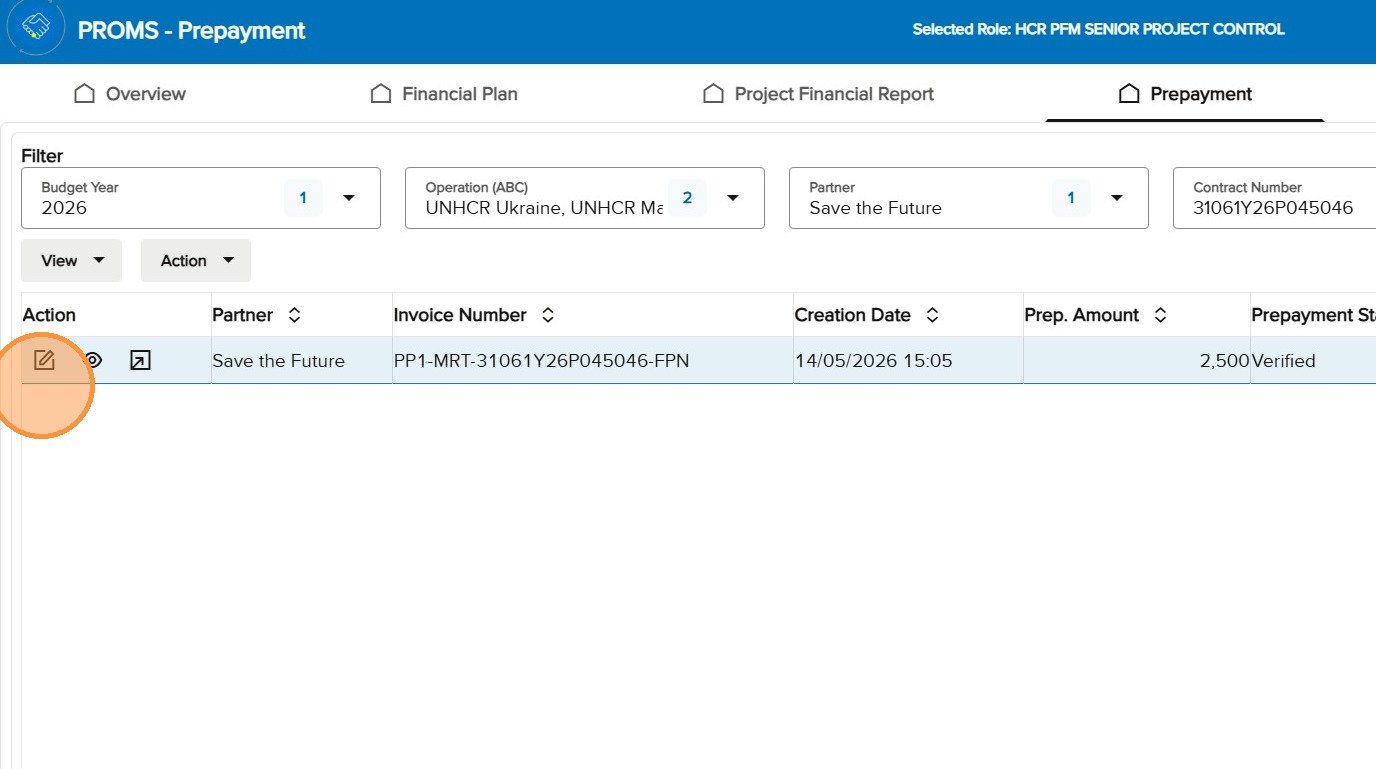
Confirm the selected Programme role, open Prepayment, apply the filters and select Edit on the Proposed request.
Programme opens the Proposed request from the Prepayment search results.
8.2
Review the amount and the Partner comment
Read the Partner comment first, then assess the amount against the risk rating, Project Workplan, Essential Controls, outstanding balances and operational fund availability. Programme can maintain or overwrite the amount; any change must be explained.
Add the Programme comment and choose Verified or Revised
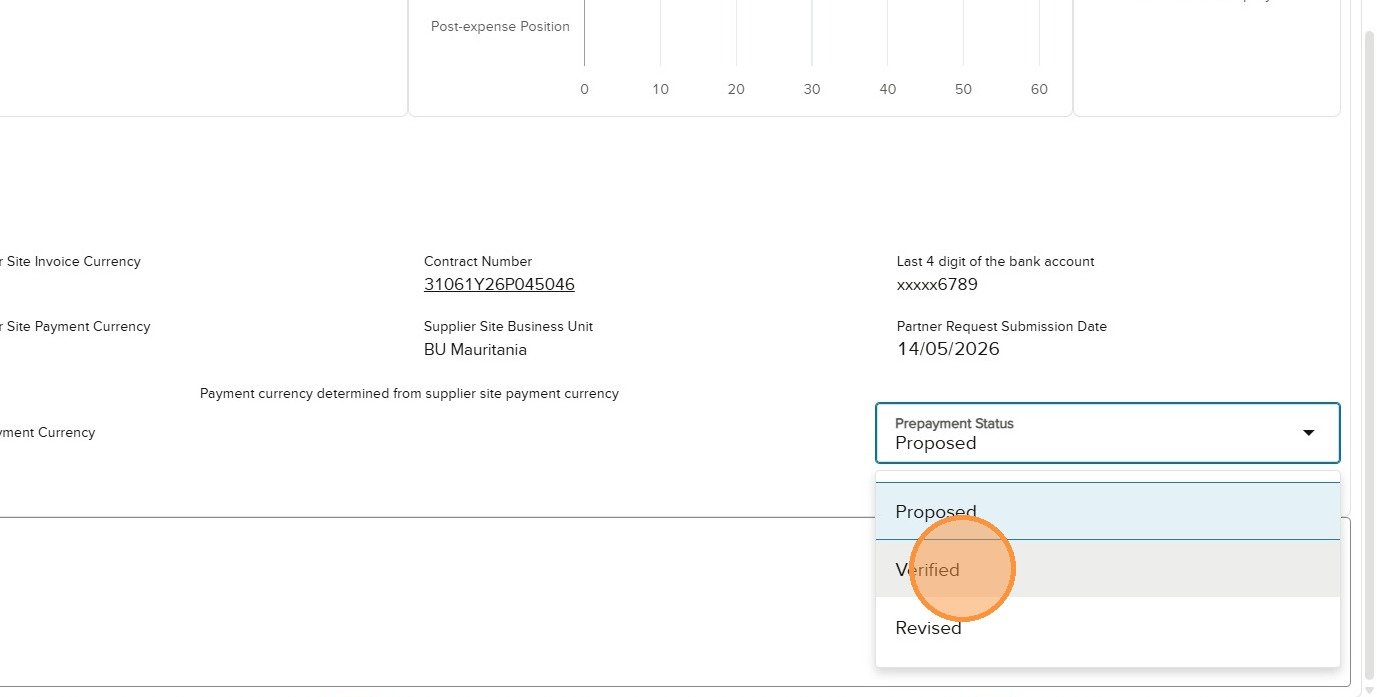
Select Verified when the request can proceed to Project Control. Select Revised when the Partner must correct or clarify the request. In both cases, add a mandatory comment. A revision comment must be actionable: state what is not accepted, what must change and, where applicable, the expected amount or evidence.
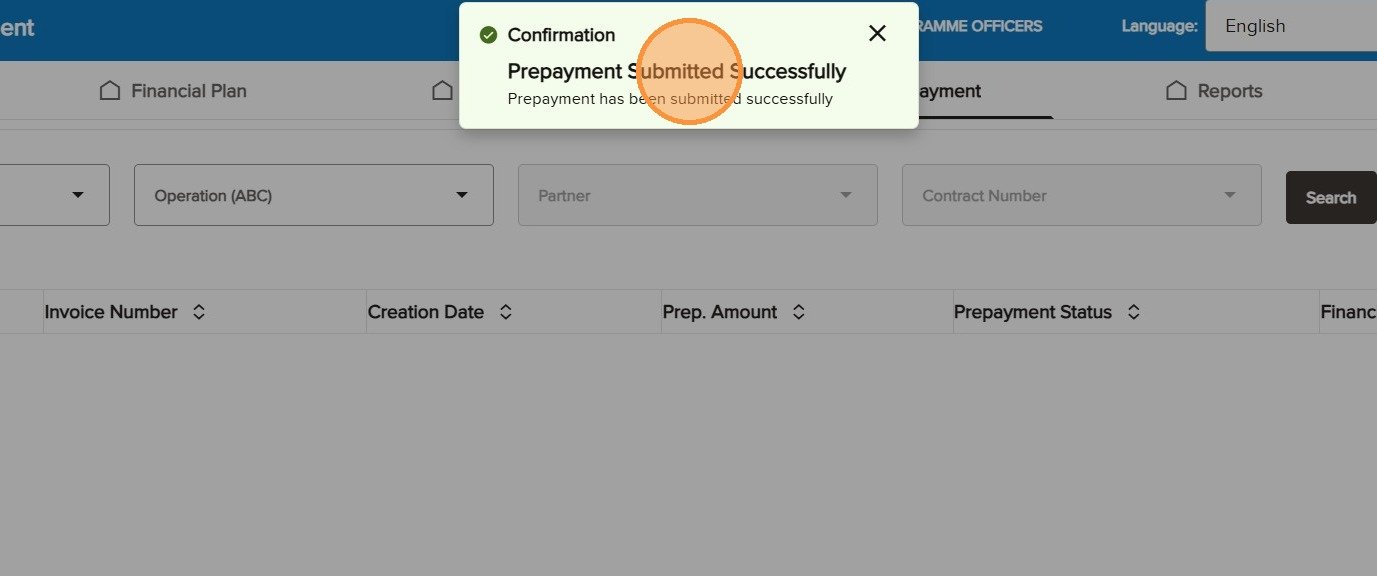
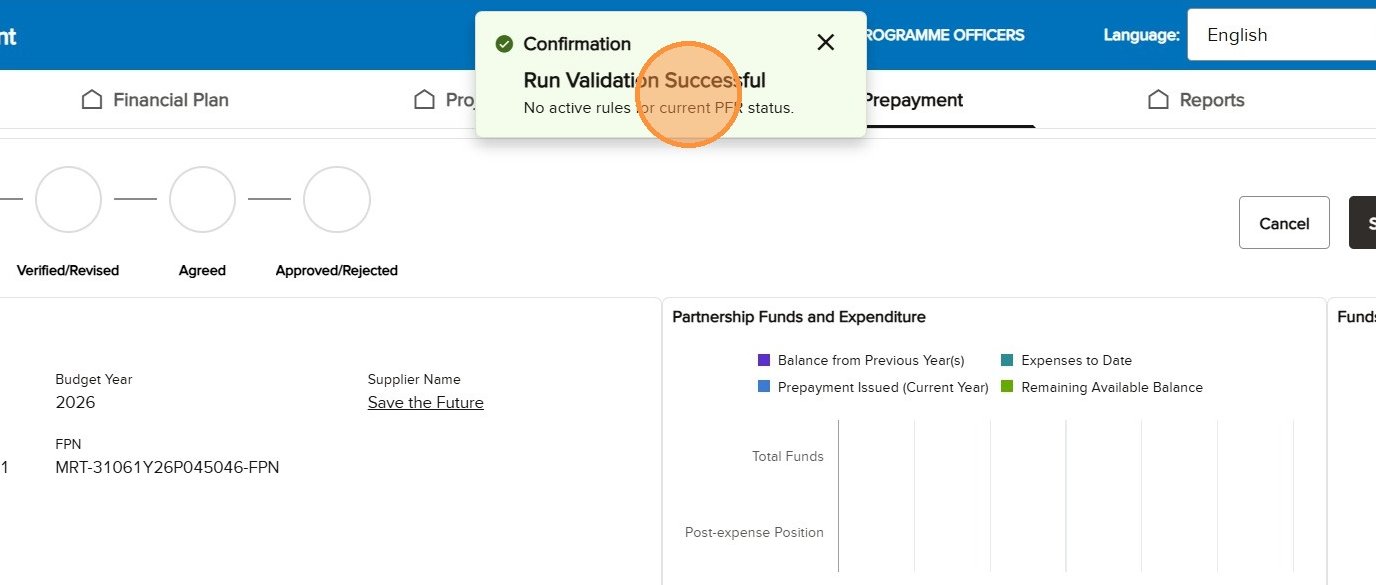
Run Validation until the indicator is green, then select Submit. Revised returns to the Partner; Verified moves to Project Control.
Programme runs validation after setting the status and adding a comment.
Submit routes a Revised request back to the Partner.
The confirmation indicates that the request has left the Programme Officer’s control.
8.5
Review and verify a corrected request
When the Partner resubmits after it was sent back for revision, confirm the corrected amount follows the revision comment. Add a new Programme comment recording acceptance, select Verified, validate and submit to Project Control.
Open the resubmitted Proposed request.
Add a Programme comment confirming the corrected request is acceptable.
Select Verified to pass the request to Project Control.
Confirm the selected Project Control role, search the Prepayment tab and open the Verified request using Edit.
Project Control opens the Verified request for final UNHCR review.
9.2
Review the amount and comments
Review the Partner and Programme explanations together with the amount, risk considerations, outstanding balances, Project Workplan, Essential Controls and available funds. Project Control can maintain or overwrite the amount, but the final decision must be explained in a new comment.
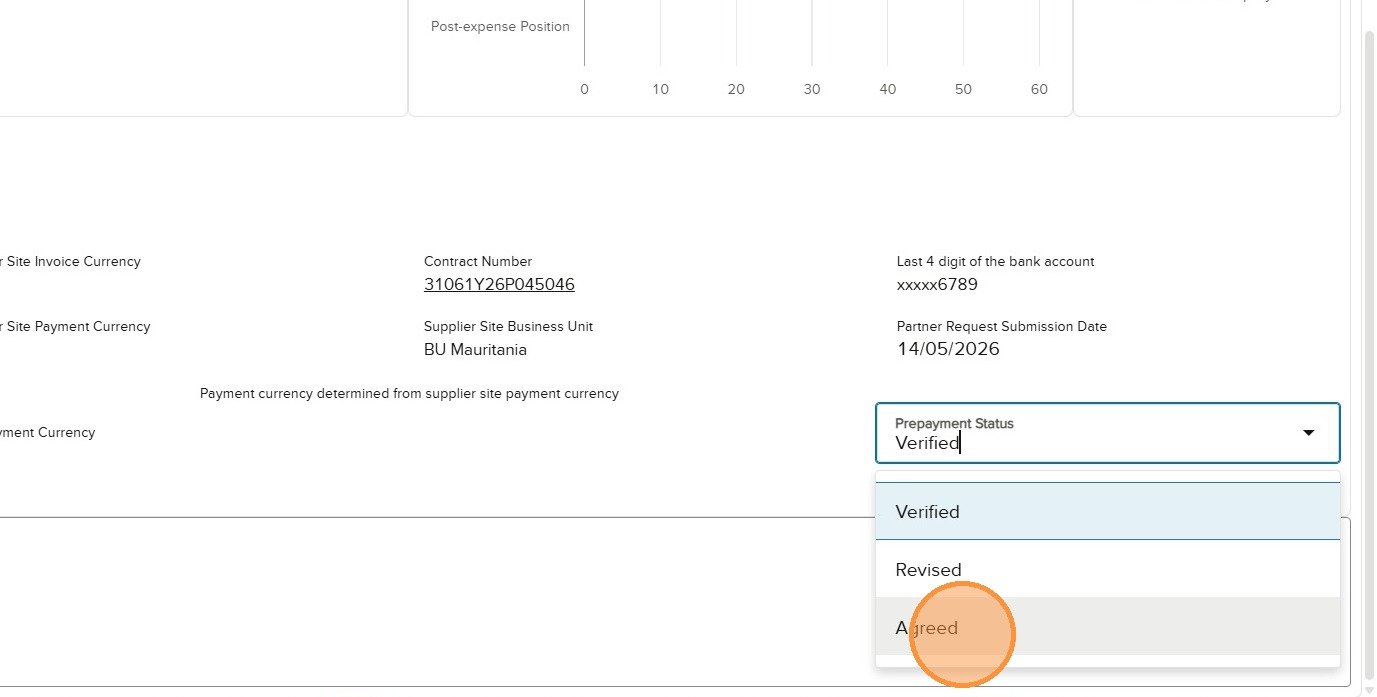
Select Agreed when the request can proceed to approval. Select Revised when the Partner must correct it. A Revised decision follows the same return route described in section 7.4.
Record why the amount is agreed or what the Partner must correct. The comment accompanies the status decision and gives the next actor a clear record of the review.
Add the Project Control decision comment before running validation.
9.5
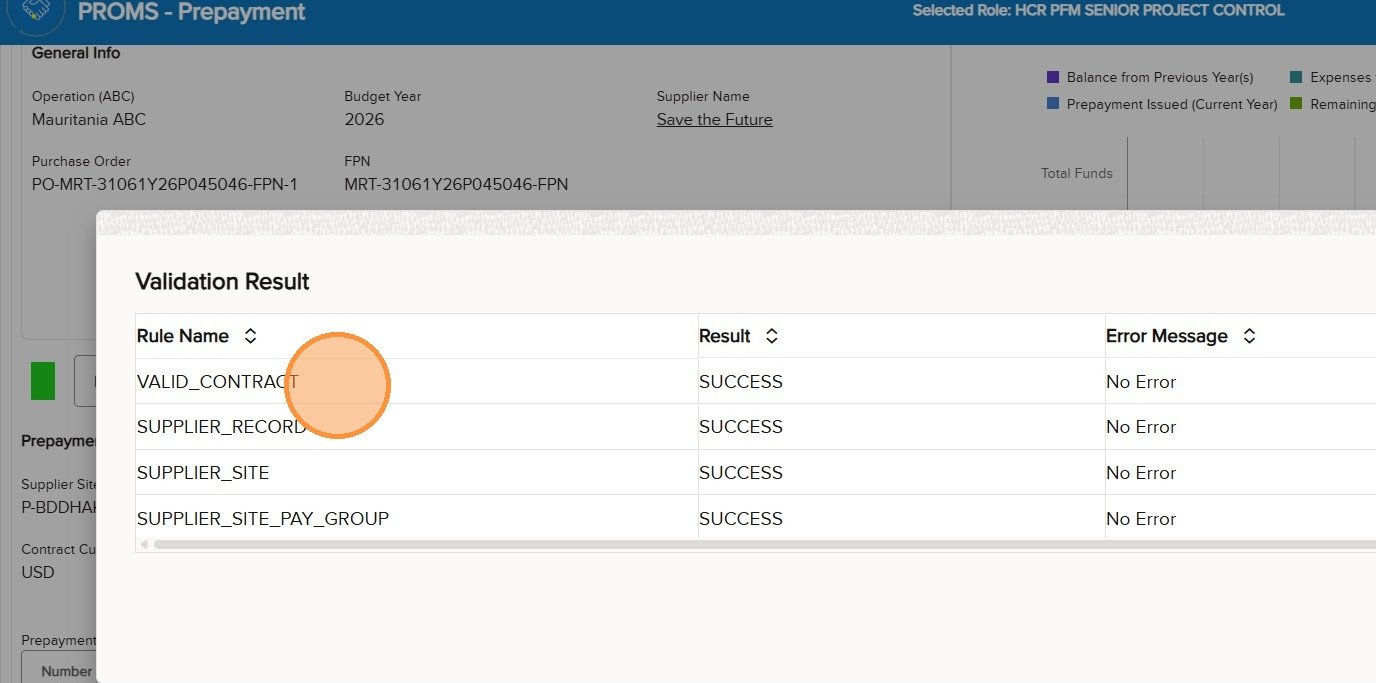
Run the four Cloud ERP readiness validations
The validation results must show SUCCESS and No Error for each rule:
Calculations – prepayment amount: Prevents an individual prepayment from exceeding the total FPN budget.
Calculations – cumulative prepayments amount: Prevents the total cumulative prepayments for the Project Work from exceeding the total FPN budget.
Prepayment positive amount: Requires the prepayment amount to be greater than zero.
No negative numbers in FPN / Prepayment: Prevents negative amounts from being entered in a prepayment.
Prepayment currency: Checks consistency between the prepayment currency and the payment/bank-account currency configured for the supplier site. Under Review, rather than confirmed deployed.
Currency decimal points: Ensures that the amount uses the correct number of decimal places for the selected currency.
Supplier Site – Payment Method: Checks that a payment method has been configured for the supplier site. Currently shown as Test rather than fully deployed.
Pay Group: Checks that a Pay Group exists on the supplier-site record in Cloud ERP.
Valid Contract: At Verified, checks that the related Cloud ERP contract is Active.
Supplier spend authorized: Checks that the supplier Business Relationship is Spend Authorized.
Supplier status: Checks that the supplier itself is Active.
Supplier tax: Checks that the supplier has a Taxpayer Country populated.
Supplier Site status: Checks that the selected supplier site is Active.
Supplier Site Purpose: Checks that the supplier site is enabled for both Purchasing and Pay.
Supplier Communication Method: Checks that the supplier-site communication method is configured as E-mail.
Mandatory Fields: Prevents progression if required fields, including the prepayment value/amount, have not been completed.
Currency decimal points: Also functions as a data-quality control by ensuring amounts conform to currency formatting rules.
Comments fields: Requires a comment when an item has been marked Revised.
Special Characters in comments: Restricts comments to acceptable/plain-text content.
Comments – 255 characters: Limits comments to a maximum of 255 characters including spaces.
All four validation rules must pass before submission.
9.6
Submit for delegated-authority approval
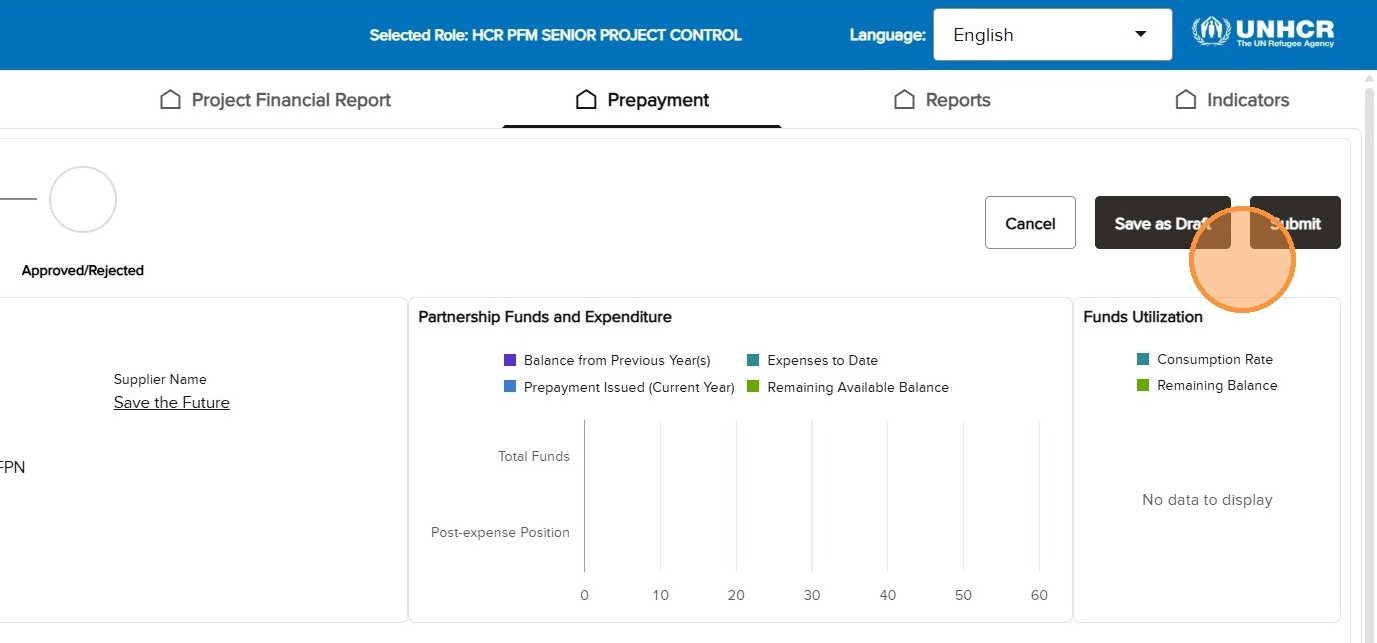
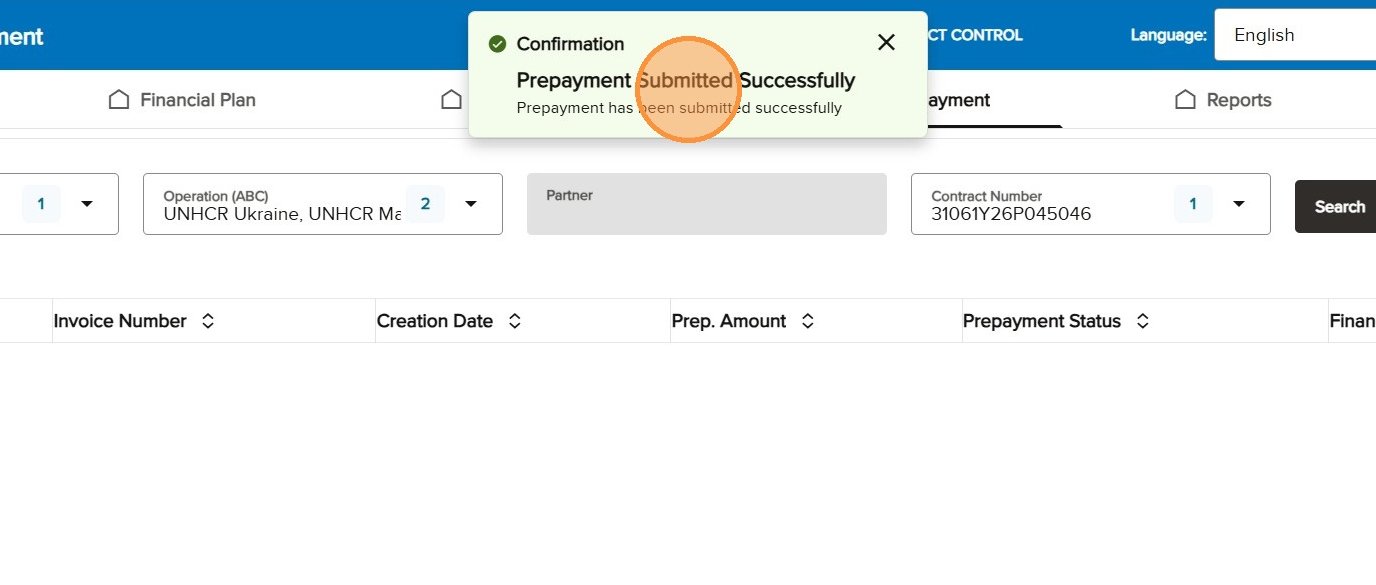
After validation is green, select Submit. The successful confirmation indicates that the request has left Project Control. The PROMS App record becomes read-only while downstream approval continues.
Submit the Agreed request for downstream approval.
The confirmation completes the Project Control action.
Cloud ERP delegated-authority approval or rejection
Agreed → Approved or RejectedCloud ERPAconex
10.1
Complete the approval decision in Cloud ERP
The Representative, delegated authority or applicable invoice approver reviews the downstream transaction in Cloud ERP and approves or rejects it under the standard payment-processing procedure. The detailed Cloud ERP approval clicks are outside this PROMS App guide.
10.2
Recognise the hand-over in the PROMS App
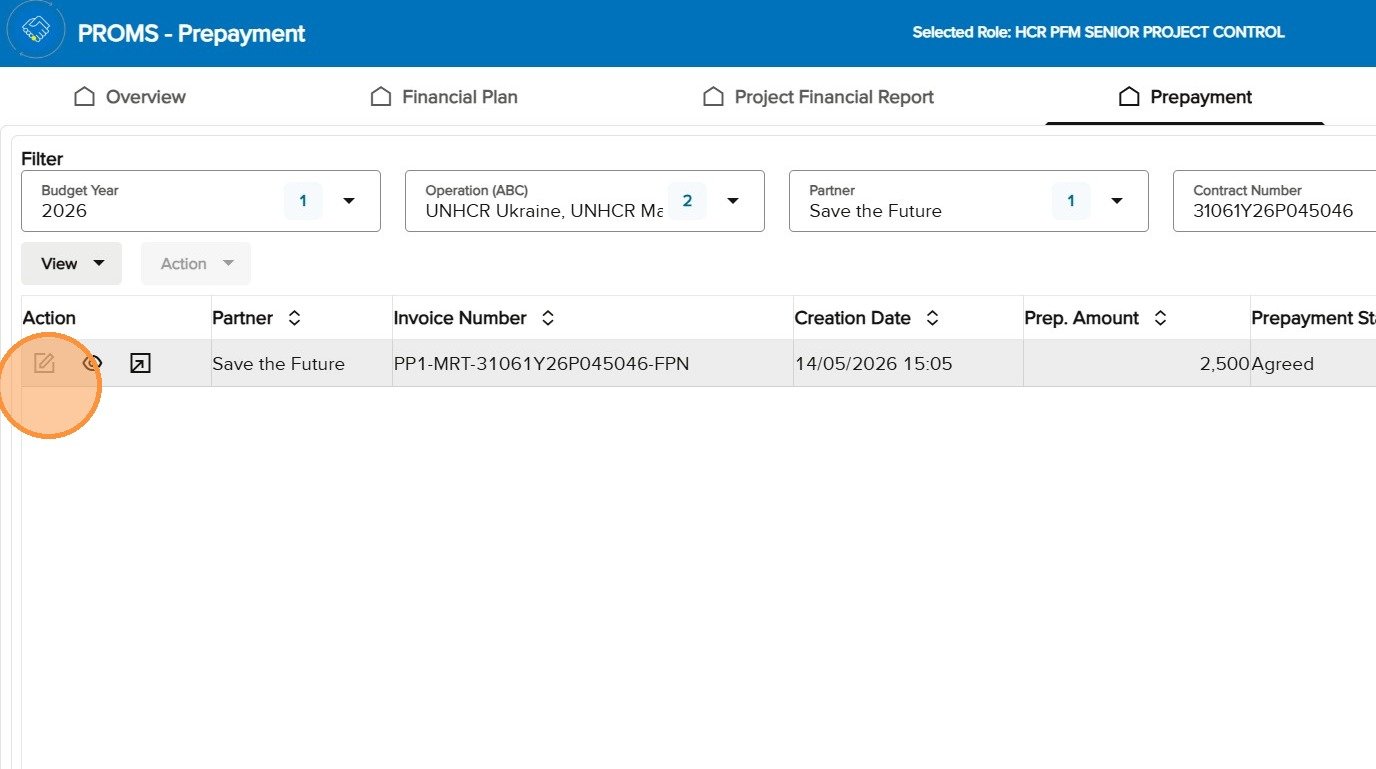
After Project Control submits the request as Agreed, the PROMS App record is read-only. The process bar subsequently reflects the downstream Approved or Rejected outcome when that result is available.
The Agreed record is read-only in the PROMS App while the approval process continues.
10.3
Use the project documents in Aconex
Use the operation’s established Aconex access and filing arrangements to review the relevant downstream project documents. Do not treat the PROMS App status alone as a substitute for the formal approval and document record.